Arkadaşlar Merhaba,
Linux mint cinnamon bilgisayardan wireles display özelliği olan tv ye görüntü aktarmak için 'İntel WİDİ' programını destekliyor olması gerekiyormuş.
Bilgisayarımdan bu programın destekleyip desteklemediğini ve bu özelliği kullanarak bu cihaza nasıl bağlantı kurabileceğimi anlatabilir misiniz lütfen?
Örnek wireless display özellikle tv örneği.
https://www.youtube.com/watch?v=rIARHGZoEmIinxi -SGx
System: Host: ykaya Kernel: 4.8.0-58-generic x86_64 (64 bit gcc: 5.4.0)
Desktop: Cinnamon 3.4.4 (Gtk 3.18.9-1ubuntu3.3)
Distro: Linux Mint 18.2 Sonya
Graphics: Card: Intel 3rd Gen Core processor Graphics Controller
bus-ID: 00:02.0
Display Server: X.Org 1.18.4 driver: intel
Resolution: 1920x1080@60.00hz
GLX Renderer: Mesa DRI Intel Ivybridge Mobile
GLX Version: 3.0 Mesa 12.0.6 Direct Rendering: Yesglxinfo | grep render
direct rendering: Yes
GLX_MESA_multithread_makecurrent, GLX_MESA_query_renderer,
GLX_MESA_multithread_makecurrent, GLX_MESA_query_renderer,
Extended renderer info (GLX_MESA_query_renderer):
OpenGL renderer string: Mesa DRI Intel(R) Ivybridge Mobile
GL_ARB_conditional_render_inverted, GL_ARB_conservative_depth,
GL_NV_conditional_render, GL_NV_depth_clamp, GL_NV_packed_depth_stencil,
GL_ARB_compute_shader, GL_ARB_conditional_render_inverted,
GL_MESA_window_pos, GL_NV_blend_square, GL_NV_conditional_render,
GL_OES_element_index_uint, GL_OES_fbo_render_mipmap,System: Host: ykaya Kernel: 4.8.0-58-generic x86_64 (64 bit gcc: 5.4.0)
Desktop: Cinnamon 3.4.4 (Gtk 3.18.9-1ubuntu3.3) dm: lightdm Distro: Linux Mint 18.2 Sonya
Machine: System: ASUSTeK (portable) product: TAICHI31 v: 1.0
Mobo: ASUSTeK model: TAICHI31 v: 1.0
Bios: American Megatrends v: TAICHI31.209 date: 04/18/2014
CPU: Dual core Intel Core i7-3537U (-HT-MCP-) cache: 4096 KB
flags: (lm nx sse sse2 sse3 sse4_1 sse4_2 ssse3 vmx) bmips: 9976
clock speeds: min/max: 800/3100 MHz 1: 800 MHz 2: 803 MHz 3: 862 MHz 4: 802 MHz
Graphics: Card: Intel 3rd Gen Core processor Graphics Controller bus-ID: 00:02.0 chip-ID: 8086:0166
Display Server: X.Org 1.18.4 driver: intel Resolution: 1920x1080@60.00hz
GLX Renderer: Mesa DRI Intel Ivybridge Mobile
GLX Version: 3.0 Mesa 12.0.6 Direct Rendering: Yes
Audio: Card Intel 7 Series/C210 Series Family High Definition Audio Controller
driver: snd_hda_intel bus-ID: 00:1b.0 chip-ID: 8086:1e20
Sound: Advanced Linux Sound Architecture v: k4.8.0-58-generic
Network: Card: Intel Centrino Advanced-N 6235 driver: iwlwifi bus-ID: 02:00.0 chip-ID: 8086:088e
IF: wlp2s0 state: up mac: <filter>
Drives: HDD Total Size: 256.1GB (4.2% used)
ID-1: /dev/sda model: SanDisk_SD5SE225 size: 256.1GB serial: 130735401739
Partition: ID-1: / size: 231G used: 6.3G (3%) fs: ext4 dev: /dev/sda2
ID-2: swap-1 size: 4.18GB used: 0.00GB (0%) fs: swap dev: /dev/sda3
RAID: System: supported: N/A
No RAID devices: /proc/mdstat, md_mod kernel module present
Unused Devices: none
Sensors: System Temperatures: cpu: 56.0C mobo: N/A
Fan Speeds (in rpm): cpu: 3000
Repos: Active apt sources in file: /etc/apt/sources.list.d/official-package-repositories.list
deb http: //packages.linuxmint.com sonya main upstream import backport #id:linuxmint_main
deb http: //archive.ubuntu.com/ubuntu xenial main restricted universe multiverse
deb http: //archive.ubuntu.com/ubuntu xenial-updates main restricted universe multiverse
deb http: //archive.ubuntu.com/ubuntu xenial-backports main restricted universe multiverse
deb http: //security.ubuntu.com/ubuntu/ xenial-security main restricted universe multiverse
deb http: //archive.canonical.com/ubuntu/ xenial partner
Info: Processes: 212 Uptime: 6 min Memory: 544.9/3837.4MB
Init: systemd v: 229 runlevel: 5 default: 2 Gcc sys: 5.4.0
Client: Unknown python2.7 client inxi: 2.2.35
Mesajlar Birleştirildi.
Arkadaşlar böyle bir şey buldum ama bunu nasıl kuruyoruz.
https://downloadcenter.intel.com/download/20919/Open-Source-Software-for-Intel-Wireless-Display-TV-Adapter-Firmware
Mesajlar Birleştirildi.
Bir üstteki linkteki dosyayı indirdim.
İçindeki dosyaları bir klasöre çıkardım.
chmod 777 * yaparak ilgili dizin içindeki herşeye full yetki verdim.
Daha sonra ./build-all.sh komutunu çalıştırdım. Ekran görüntüsü aşağıdaki gibidir.
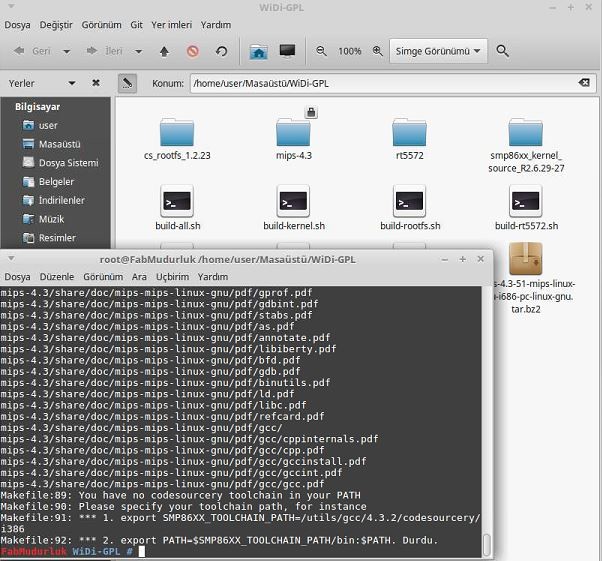
Bundan sonra ne yapmak gerekiyor acaba?


